
 Chrome Proxy Extension
 Firefox Proxy Extension


Operating system
WeProxy proxy setup for Windows
Windows 10 and 11 provide system-wide manual proxy configuration. Apps that follow system proxy (such as Edge or Opera) can share the same line; some apps need their own settings.
Windows 10 and Windows 11 offer automatic or manual proxy configuration for apps that use the system setting. When you add a WeProxy connection to Windows, apps such as Edge and Opera that follow the system proxy can use the same connection. Some apps use their own proxy manager and may need a separate setting.
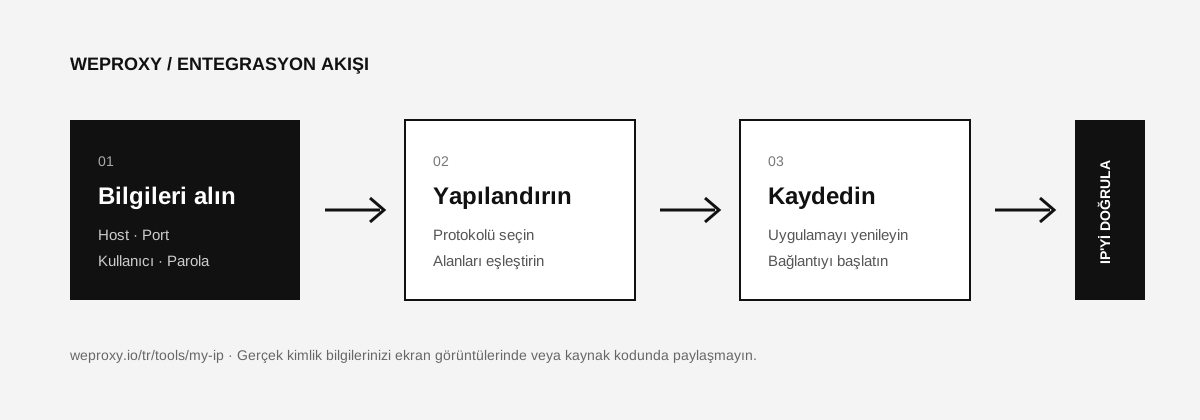
Prepare Your WeProxy Details
| Windows field | Matching value in the WeProxy panel |
|---|---|
| Proxy IP address | Proxy host |
| Port | Proxy port |
| Sign-in screen | Username and password |
Confirm that the protocol from the panel is compatible with Windows’ manual system setting. The standard manual fields in the Windows UI are mainly intended for HTTP proxy use.
Proxy Setup on Windows 11
- Open Start > Settings.
- Go to Network & internet > Proxy.
- Under Manual proxy setup, click Set up next to Use a proxy server.
- Turn on Use a proxy server.
- Enter the WeProxy host in Proxy IP address.
- Enter the WeProxy port in Port.
- If needed, add exception addresses separated by semicolons.
- If you want local network addresses to connect directly, leave the related option checked.
- Click Save.
Proxy Setup on Windows 10
- Open Start > Settings > Network & Internet > Proxy.
- Go to the Manual proxy setup section.
- Turn on Use a proxy server.
- Enter the WeProxy details in the address and port fields.
- Add your exception list and save the setting.
If the proxy asks for a username and password, a supporting browser or app may show an authentication prompt on the first request.
Testing the Windows Proxy Connection
In a browser that uses the system setting, open the My IP page. If the result still shows your old IP, fully restart the browser. If it still does not change, check whether the app uses the system proxy setting.
Difference Between Automatic Setup Script and Manual Proxy
If WeProxy did not give you a PAC file URL, do not put host details in the Use setup script field. Manual host and port values go under Manual proxy setup. Automatic detection can be useful on corporate networks but is not required for a manual WeProxy connection.
Troubleshooting Windows Proxy Issues
Internet is completely cut off
With a wrong proxy address or port, apps that follow the system setting cannot connect. Temporarily turn the proxy off and check the panel details.
Authentication failed
Copy the username and password again. If you use an IP-allowlisted product, verify your current internet IP in the WeProxy panel.
Only some apps use the proxy
This can be expected. Python, Node.js, Postman, and some desktop apps use their own proxy settings or environment variables.
Turning Off the Proxy on Windows
Open Settings > Network & internet > Proxy > Manual proxy setup. Turn off Use a proxy server and save.
Source
Other integrations
Looking at another tool?

Get started
Connect with WeProxy now
Create an account, use 100 MB of free residential traffic right away, and follow the steps above in your own setup.