
 Chrome Proxy Extension
 Firefox Proxy Extension


Browser
WeProxy proxy setup for Safari
Safari follows macOS network settings rather than a separate proxy screen. Other apps on the same network service may be affected. Copy host, port, and credentials from the panel, then follow the steps below.
Safari does not use a separate proxy screen; it relies on macOS network settings. A proxy you configure for Safari can therefore also affect other compatible apps that use the same network service. Follow the steps below to set your WeProxy details for Safari and verify the connection.
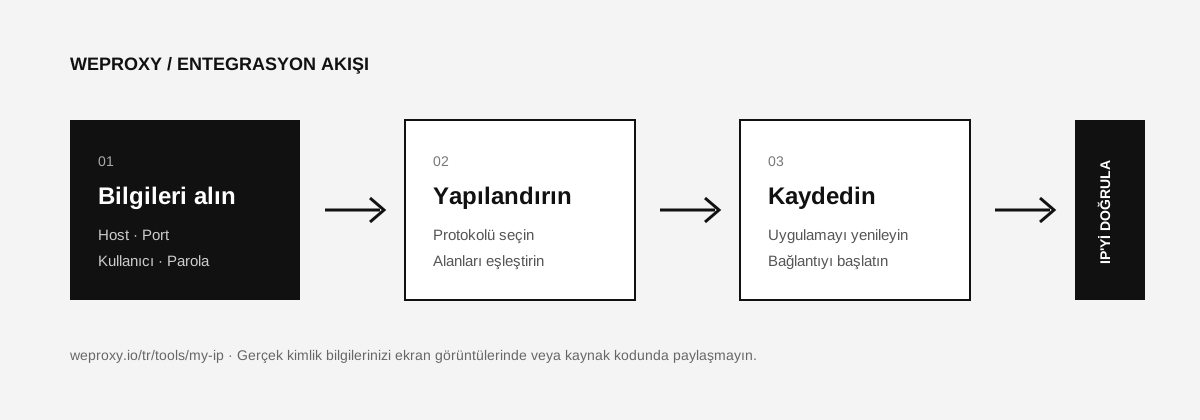
Before You Start
From the WeProxy customer panel, get the following details for the product you use:
| Safari/macOS field | WeProxy value |
|---|---|
| Proxy type | HTTP, HTTPS, or SOCKS5 |
| Server | Proxy host address |
| Port | Proxy port |
| Username | Proxy username |
| Password | Proxy password |
Supported protocols depend on your product. Do not select a protocol that is not shown in the panel.
Opening Proxy Settings in Safari
- Open Safari.
- From the top menu, go to Safari > Settings.
- Open the Advanced tab.
- Next to the Proxies row, click Change Settings.
- macOS will open the Network > Proxies screen for the connection you are using.
Entering WeProxy Details
- If your WeProxy product uses HTTP, enable Web Proxy (HTTP).
- For HTTPS traffic, enable Secure Web Proxy (HTTPS) if your product supports it in the panel.
- If you use SOCKS5, enable SOCKS Proxy.
- Enter the proxy host in the Server field and the port number in the adjacent field.
- If authentication is required, turn on Proxy server requires password.
- Enter your WeProxy username and password.
- Click OK, then Apply.
If you need the same proxy for both HTTP and HTTPS fields, enter the host and port in both. Use only the protocol your purchased product supports.
Testing the Connection
Fully quit Safari and reopen it. Then go to the My IP page. If the displayed IP and country match the connection in your WeProxy panel, the setup is complete.
Safari Proxy Errors and Fixes
Safari cannot connect to the internet
Double-check the host and port. If your package has expired or the proxy is offline, macOS will not fall back to a direct internet connection; pages will not load.
Username and password keep being requested
Copy the credentials again from the panel. Make sure there are no spaces in the password. If old credentials are stored in macOS Keychain, update the related proxy entry.
Some apps are not using the proxy
Not every app is required to follow macOS proxy settings. If an app uses its own network stack, you may need to configure the proxy separately.
How to Turn Off the Proxy in Safari
Open System Settings > Network > Active connection > Details > Proxies. Disable the HTTP, HTTPS, or SOCKS option you enabled, then click OK and Apply.
Source
Other integrations
Looking at another tool?

Get started
Connect with WeProxy now
Create an account, use 100 MB of free residential traffic right away, and follow the steps above in your own setup.