
 Chrome Proxy Extension
 Firefox Proxy Extension


API client
WeProxy proxy setup for Postman
Postman Desktop can use the system proxy or a custom proxy for Postman requests only. Custom configuration is cleaner for API tests without affecting other apps. Postman’s capture proxy is not the same as an external WeProxy line.
Postman Desktop can use the system proxy setting or define a custom proxy for Postman requests only. If you want to use WeProxy in API tests without affecting other apps, custom proxy configuration is the more controlled option.
The external proxy setting Postman uses to send requests is not the same as Postman’s built-in proxy for capturing incoming traffic. This guide covers the external WeProxy connection.
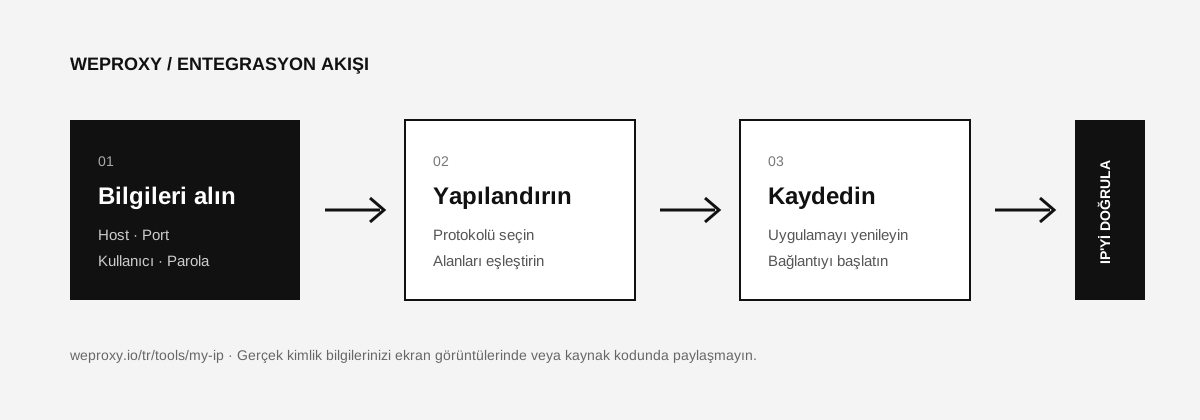
Required WeProxy Details
| Postman field | WeProxy value |
|---|---|
| Proxy server | Host |
| Port | Port |
| Proxy type | HTTP or SOCKS |
| Proxy auth username | Username |
| Proxy auth password | Password |
Configuring a Custom Proxy in Postman
- Open the Postman Desktop app.
- Click the Settings icon at the top, then open Settings again.
- Go to the Proxy tab.
- Enable Use custom proxy configuration.
- Under Use proxy for, select the HTTP and/or HTTPS requests you want to send through the proxy.
- Choose HTTP or SOCKS as the proxy type to match your WeProxy product.
- In Proxy server, enter only the host; do not add
http://orsocks5://at the start. - Enter the WeProxy port in the port field.
- If a username and password are required, turn on Proxy auth and add the details.
- If there are addresses that should bypass the proxy, enter them in Proxy bypass, separated by commas.
While the custom proxy is on, Postman prioritizes it over the system proxy setting. To avoid confusion, leave only the method you need enabled at a time.
Using the System Proxy Setting
If you already configured WeProxy system-wide on Windows or macOS:
- In Postman, open Settings > Proxy.
- Enable Use system proxy.
- Turn off Use custom proxy configuration.
- If the system proxy requires authentication, enter the username and password in Default proxy configuration.
- Save and restart Postman.
Testing a Request
Create a new GET request:
https://api.ipify.org?format=json
Click Send. The IP in the response should show the WeProxy exit IP. After that you can test your real API endpoint.
Postman Proxy Errors
407 Proxy Authentication Required
Check the Proxy auth option and credentials. Make sure no protocol was added to the host field.
The system proxy is used instead of the custom proxy
According to Postman docs, when the custom proxy is enabled it takes priority. To simplify settings, turn off the option you are not using and restart Postman.
Cannot send requests through a SOCKS proxy
Postman routes HTTP and HTTPS requests through a SOCKS proxy. Confirm that the SOCKS version you selected matches your WeProxy product.
SSL certificate error
Instead of permanently disabling certificate verification, inspect the certificate chain of the proxy and destination server. If a corporate CA is required, add the trusted CA file in Postman’s certificate settings.
Source
Other integrations
Looking at another tool?

Get started
Connect with WeProxy now
Create an account, use 100 MB of free residential traffic right away, and follow the steps above in your own setup.