

 Chrome-Proxy-Erweiterung
 Firefox-Proxy-Erweiterung


Browser
WeProxy-Proxy-Einrichtung Für Microsoft Edge
Edge nutzt standardmäßig die OS-Proxy-Einstellungen. Systemeinstellungen eignen sich am besten für den Alltag; für temporäre Edge-only-Fälle können Sie ein Startflag verwenden.
By default, Microsoft Edge uses the operating system’s network and proxy settings. On Windows, that setting can also affect other apps that follow the same system proxy. If you need a temporary Edge-only proxy, a command-line option is available; for daily use, the system setting is easier.
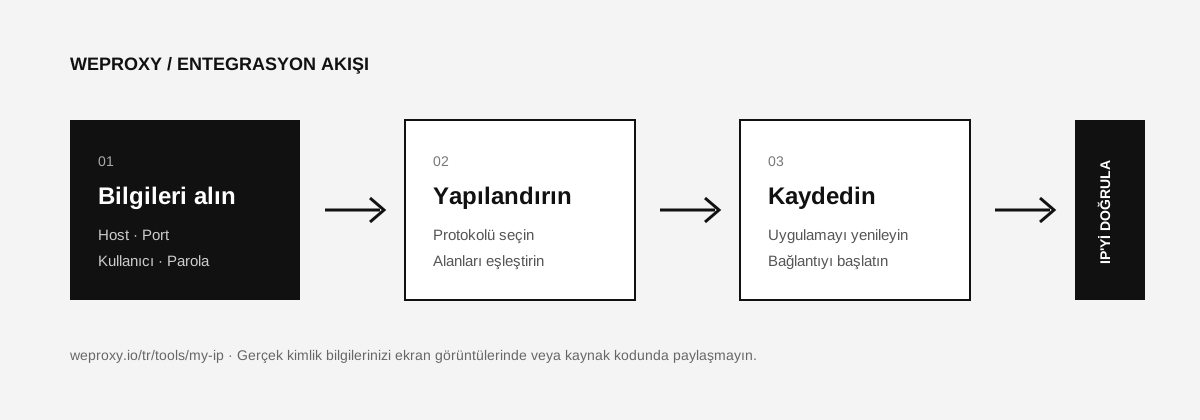
Required WeProxy Details
| Edge/Windows field | Value in the WeProxy panel |
|---|---|
| Proxy IP address | Host |
| Port | Port |
| Sign-in prompt | Username and password |
Have the host, port, and credentials ready from the WeProxy panel. Protocol and authentication method can vary by product.
Configuring Edge Proxy Settings on Windows
- In the Edge address bar, type
edge://settings/system. - Click Open your computer’s proxy settings.
- Windows opens the Network & internet > Proxy screen.
- Under Manual proxy setup, click Set up next to Use a proxy server.
- Turn the option on.
- Enter the WeProxy host in Proxy IP address and the port in Port.
- If needed, add addresses that should bypass the proxy to the exception list.
- Click Save and restart Edge.
If proxy authentication is required, Edge may show a username and password prompt on the first connection. Enter the details from your WeProxy panel there.
Configuring Edge Proxy Settings on macOS
- In Edge, open
edge://settings/system. - Open the system proxy settings.
- Follow Network > Active connection > Details > Proxies.
- Enable HTTP, HTTPS, or SOCKS based on your WeProxy product.
- Enter the host, port, username, and password, then apply the setting.
Using a Temporary Proxy for Edge Only
For advanced use, Edge supports the --proxy-server startup parameter:
msedge.exe --proxy-server="http://PROXY_HOST:PROXY_PORT"
This starts Edge with the specified proxy. Do not put the username and password in the command; use the authentication prompt. Fully quit Edge first, because other open Edge processes can prevent the parameter from applying.
Verifying the IP Address
Open the WeProxy IP check tool in Edge. If the displayed IP does not match your product’s IP, confirm the setting was saved and that Edge was fully restarted.
Common Edge Proxy Errors
ERR_PROXY_CONNECTION_FAILED
There may be an issue with the host, port, or service status. Copy the details again from the panel and confirm the package is active.
Constant username and password prompts
Incorrect or outdated credentials may be in use. If you reset the password, quit Edge and open it again. For products that use IP allowlisting, make sure your current connection IP is on the allow list.
Edge uses the proxy, but another app does not
Not every app follows the Windows system proxy setting. You may need a separate proxy configuration in that app.
Sources
Weitere Integrationen
Ein anderes Tool im Blick?

Jetzt Starten
Jetzt mit WeProxy verbinden
Konto erstellen, 100 MB kostenlosen Residential-Traffic sofort nutzen und die Schritte oben in Ihrer eigenen Einrichtung umsetzen.