

 Chrome-Proxy-Erweiterung
 Firefox-Proxy-Erweiterung


Mobil
WeProxy-Proxy-Einrichtung Für Android
Androids integrierte Proxy-Einstellung gilt pro Wi-Fi-Netzwerk und nicht automatisch für Mobilfunkdaten. Menütexte variieren je Hersteller. Host und Port aus dem Panel kopieren — die meisten Geräte haben keine Benutzername/Passwort-Felder.
Android’s built-in proxy setting is specific to a Wi-Fi network. It does not automatically apply to mobile data, and menu names can vary by device manufacturer. Use the steps below to assign your WeProxy connection to a Wi-Fi network.
Before You Start
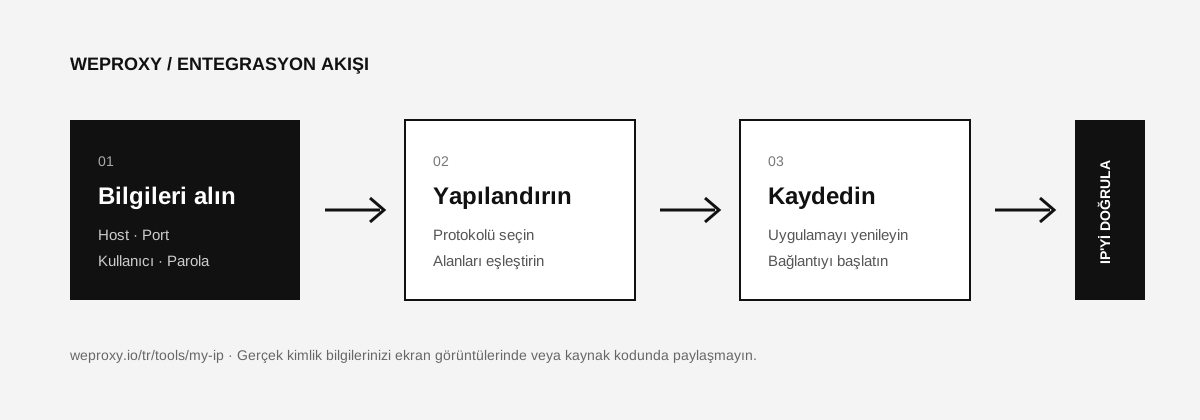
From the WeProxy customer panel, get the proxy host and port. On most devices, Android’s built-in Wi-Fi screen only shows host, port, and bypass list fields; it may not offer separate username and password fields.
| Android field | WeProxy value |
|---|---|
| Proxy hostname | Host |
| Proxy port | Port |
| Bypass proxy for | Addresses to exclude from the proxy, optional |
Setting a Manual Proxy on Android
- Open Settings > Network & internet > Internet.
- Tap the Wi-Fi network you are connected to.
- Select the Edit icon. On some devices you need to press and hold the network name and choose Modify network.
- Open Advanced options.
- From the Proxy menu, select Manual.
- Enter the WeProxy host in Proxy hostname.
- Enter the WeProxy port in Proxy port.
- Add an optional bypass list and tap Save.
Proxies That Require Username and Password
If Android’s Wi-Fi settings screen has no username and password fields, the browser may show an authentication prompt on the first connection. Not every app supports that prompt. If a connection cannot be established, consider these options:
- If your WeProxy product supports it, add your current internet IP to the allow list.
- Use a trusted app that supports authenticated proxies.
- Ask WeProxy support which authentication methods are available for your product.
Do not share your credentials with unverified third-party apps.
Verifying the Connection
In Chrome or your browser, open the WeProxy IP check tool. If the IP did not change, turn the Wi-Fi network off and on, or forget the network and reconnect.
Common Issues When Setting Up Android Proxy
The proxy does not work on mobile data
Android’s manual proxy setting applies to the Wi-Fi network you selected. The same manual fields may not be available for mobile data traffic.
Some apps connect directly
Not all Android apps are required to follow the system proxy setting. If an app has no proxy support of its own, traffic may go out directly.
Wi-Fi is connected but there is no internet
Check the host, port, and package status. If the proxy requires authentication, the app may not support it.
Turning Off the Proxy on Android
Open the same Wi-Fi network’s Edit > Advanced options > Proxy section. Choose None and save the setting.
Source
Weitere Integrationen
Ein anderes Tool im Blick?

Jetzt Starten
Jetzt mit WeProxy verbinden
Konto erstellen, 100 MB kostenlosen Residential-Traffic sofort nutzen und die Schritte oben in Ihrer eigenen Einrichtung umsetzen.